Edit Page: Edit Any Webpage Visually in Your Browser
A guide to Edit Page, the visual webpage editor for Chrome: edit text, styles and HTML, take screenshots, clean up pages and keep changes per site.

Sometimes you want a webpage to be different: a typo fixed in a screenshot, a headline rewritten to test copy, a font made readable, a cookie banner gone, a design idea tried on the real site. Browser DevTools can do it, but it's built for developers and slow for visual changes.
Edit Page is a visual webpage editor for Chrome, from the same maker as SummaryTube. You click things on a page and change them, without code. This guide covers what it does, how to start and some practical uses.
Good to know: Edit Page changes the page in your browser only. The real website, and what everyone else sees, stays the same.
What Edit Page does
| You want to… | In Edit Page |
|---|---|
| Change text | Double-click any text and type, with bold, italic and links |
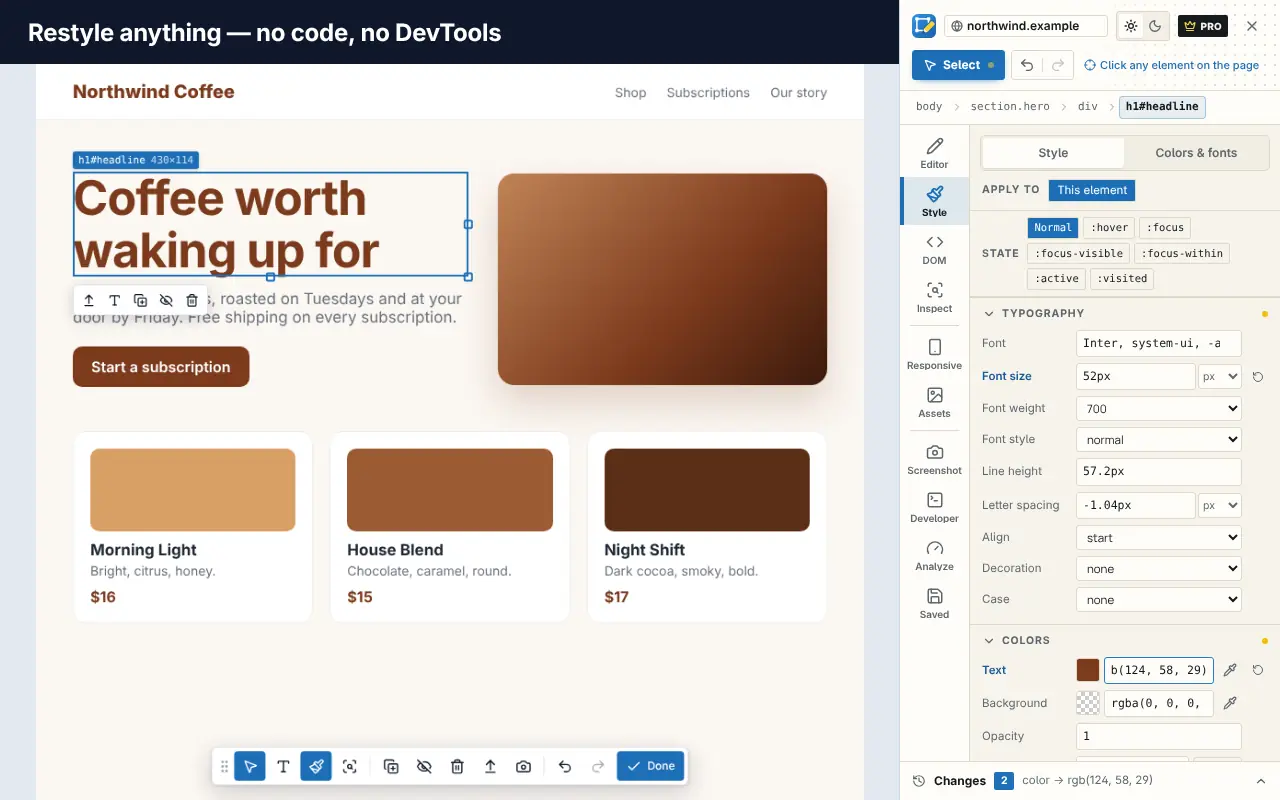
| Change how something looks | Typography, colors, spacing, size, borders, layout, shadows |
| Move, resize or hide things | Drag, use handles, nudge with arrow keys, hide or delete |
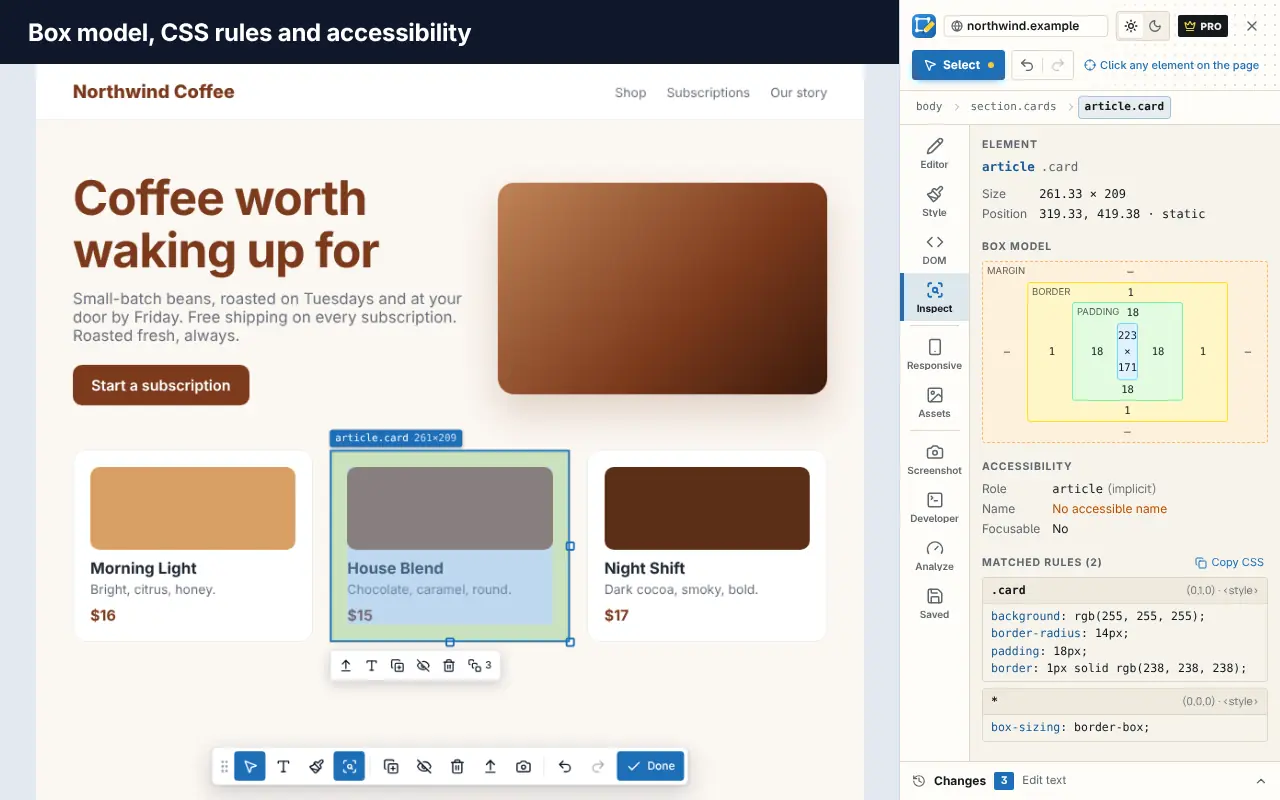
| See how a page is built | A DOM tree, box model, matched CSS rules and computed styles |
| Capture the page | Screenshots of the visible area or a region, then crop and annotate |
| Remove clutter | One-click cleanup of cookie banners, pop-ups, chat bubbles and sticky bars |
| Check a design on other screens | Responsive preview at phone, tablet and desktop sizes |
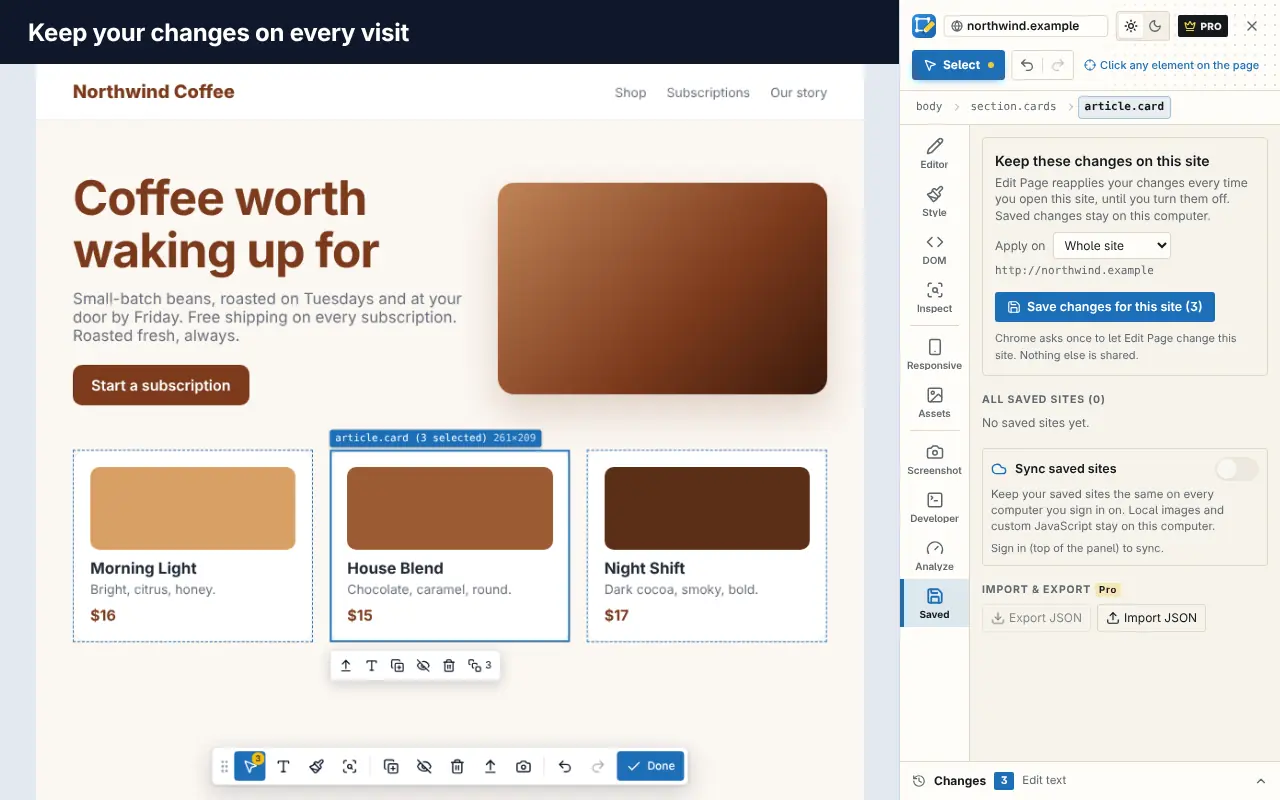
| Keep changes | Save changes for a site and they're reapplied on every visit |
Getting started
- Install Edit Page for Chrome. Microsoft Edge can install it from the Chrome Web Store too.
- Open any webpage and click the Edit Page icon. A side panel opens.
- Click an element to select it. Shift-click to select several, or select all matching elements at once.
- Double-click text to edit it, or use the Style panel to change how the selection looks.
- Undo anything with the undo button. Every change is listed, and each one can be switched off individually.
No account is needed to edit.
Inspect and understand a page
Edit Page also explains what you're looking at. The DOM tree handles huge pages and can be searched by CSS selector. The Inspect view shows the box model, the CSS rules that apply with their real specificity, computed styles and accessibility details. For people learning web development from tutorials, that's a friendly way to see the concepts on real sites; Edit Page's blog has a guide to inspecting and editing HTML and CSS.
Keep your changes
Normally, edits disappear when you reload a page. In Edit Page you can save changes for a website, and they're reapplied every time you visit, before the page even paints. That's useful for permanent fixes on sites you use daily: a larger font, a hidden distraction, a cleaner layout. Edit Page asks for access to a site only when you save changes for it.
Practical uses
- Mock up copy and design changes on the real page before asking a developer for them.
- Prepare clean screenshots for documentation, tutorials or a blog post: fix typos, remove banners, blur personal details. If you're turning a video into an article, our guide to turning a YouTube video into a blog post explains where screenshots fit.
- Preview a YouTube title and thumbnail next to real videos before you publish; see how to preview a YouTube title and thumbnail.
- Make sites easier to read with a larger font, more line spacing or higher contrast, saved per site.
- Learn CSS by changing properties on real pages and watching the result.
Free and Pro
Most of the editor is free. Pro is optional, has a free 7-day trial, and adds bulk styling and advanced CSS, full-page and element screenshots with annotations, unlimited saved sites, sync between your devices, custom JavaScript and code export (CSS, HTML, React, Vue or Tailwind).
Privacy
Your edits stay on your computer unless you turn on Pro sync between your own devices. Edit Page has no third-party analytics and no ads, and it only runs on a tab when you ask it to.
Learn more
Edit Page's blog has step-by-step guides such as how to edit a webpage in your browser, how to change the font on any website and how to take a full-page screenshot in Chrome.
Frequently asked questions
Does Edit Page change the real website?
No. It changes the page in your browser only. Other visitors see the original site.
Do my edits stay after I reload?
Only if you save them for that site. Saved changes are reapplied every time you visit; unsaved edits disappear on reload.
Is Edit Page free?
Yes, most of the editor is free and no account is needed. Pro adds advanced features and has a 7-day free trial.
Which browsers does Edit Page work in?
Edit Page is available on the Chrome Web Store, and Chromium browsers such as Microsoft Edge can install it from there.