How to Turn Your YouTube Video Into a Blog Post
Repurpose your own YouTube videos as blog posts: start from the transcript and summary, rewrite for readers, add visuals and optimize for search.

You've already done the hard part: researching, scripting and recording a video. Turning it into a blog post reaches people who prefer reading, gives search engines text to index, and gives your video a second life. Done well, it takes an hour, not a day.
Use your own content. This workflow is for videos you made or have permission to repurpose. Republishing someone else's video as an article can infringe their copyright.
The workflow
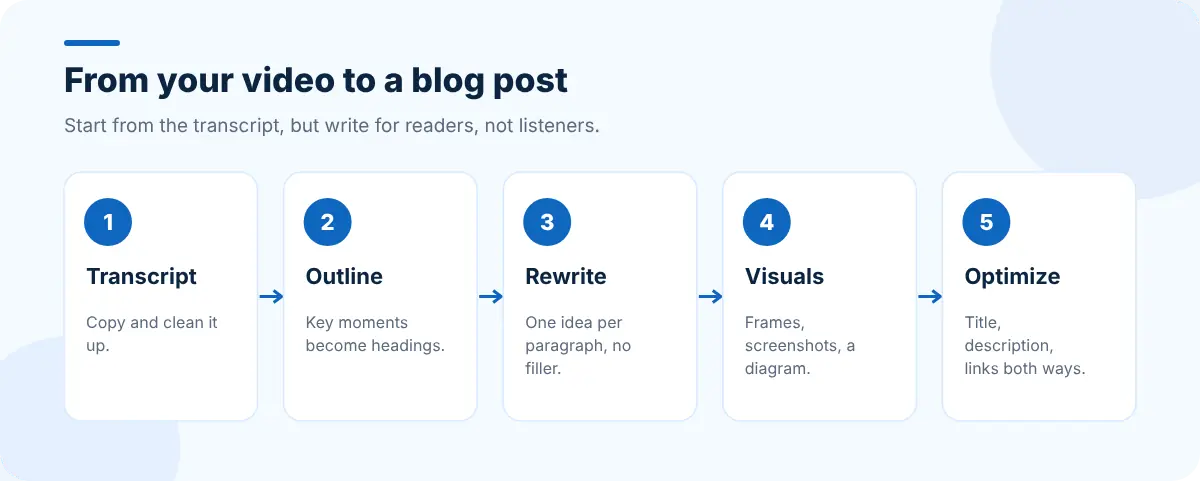
1. Get the transcript
Open the video, expand the description and click Show transcript, or open it in SummaryTube, which shows the transcript next to an AI summary. Copy it into a document. Our guide to getting a YouTube transcript covers the details and how to clean it up.
2. Build the outline from the summary
A summary and the key moments make a ready-made outline: each key moment becomes a section heading, and the summary's main points become the article's promise. SummaryTube groups the summary by topic, which maps neatly onto H2 headings.
3. Rewrite for reading
Spoken language doesn't read well. Edit for the page:
| Spoken | Written |
|---|---|
| "So, um, what we're gonna do now is…" | "Next, …" |
| Long, looping explanations | One idea per paragraph |
| "As you can see here" | A screenshot with a caption |
| Asides and tangents | Cut, or move to a callout |
| A recap at the end | A short summary at the top |
Keep your voice, lose the filler. Aim for scannable structure: clear headings, short paragraphs, numbered steps for anything procedural.
4. Add visuals
Pull two to five frames or screenshots from the video for the key steps, and add a diagram if you explained something visually. Take a clean screenshot of any webpage you showed; Edit Page explains how to take a full-page screenshot in Chrome and how to remove pop-ups first.
5. Optimize and link
- Title and description: use the words people search for, not just the video title.
- Headings that match the questions your audience asks.
- Embed the video near the top so readers can watch if they prefer.
- Link both ways: from the article to the video, and from the video description to the article.
- Check the page's tags before publishing. Web Developer Tools' guide to checking meta tags and Open Graph shows how to preview your search snippet and share card.
Fact-check before you publish
AI summaries and auto-captions are fast but not perfect. Before publishing, check names, numbers, product details and any instructions against the video. Our guide to how accurate AI video summaries are lists what to look for.
One video, many formats
The same transcript and summary can become:
- A newsletter with the three key points and a link to the video.
- A social thread of the key moments.
- A checklist or cheat sheet from the steps.
- An FAQ section from the questions viewers asked in the comments.
Frequently asked questions
Can I turn any YouTube video into a blog post?
Only your own videos, or videos you have permission to repurpose. For other people's videos, write your own article and link to or embed the original.
Is a raw transcript a good blog post?
No. Transcripts are written for listening. Restructure them with headings, cut filler, add visuals and a summary at the top so they work for readers.
Will a blog post compete with my video in search?
They usually help each other. The article ranks for text searches and can embed the video, and the video can link back to the article.