Preview a YouTube Title and Thumbnail Before Publishing
See how your YouTube title and thumbnail look next to real videos before you upload: mock them up on YouTube itself in your browser, compare, and choose.

A thumbnail that looks great full-screen in your design app can disappear on a real results page: too busy at small sizes, the same colors as every other video, text nobody can read on a phone. Titles have the same problem. They read fine on their own and get lost next to ten competitors.
The best test is to see your title and thumbnail where viewers will see them: on YouTube, surrounded by real videos. You can do that before publishing by editing the YouTube page in your own browser. Nothing changes on YouTube for anyone else; you're only changing your copy of the page.
Why preview in context
- Size. Thumbnails appear at many sizes, from large on the home feed to small in the sidebar. Detail that works large often vanishes small.
- Contrast with neighbours. If every video in your niche uses yellow text, yours won't stand out with yellow text either.
- Title truncation. Long titles get cut off, often at different points on desktop, mobile and in the sidebar.
- The pair, not the parts. Viewers see the title and thumbnail together. They should add to each other, not repeat the same words.
What you need
- Your draft thumbnail image (or two or three alternatives).
- Your draft title (or a few options).
- A browser with a way to edit a page visually. This guide uses Edit Page, a free Chrome extension from the same maker as SummaryTube; it also works in Edge, which can install extensions from the Chrome Web Store.
You can also do this with your browser's Inspect Element, but changing an image and several titles that way takes much longer.
Step 1: Find the right page to mock up
Search YouTube for the phrase your viewers would use to find your video, so the results show the videos you're actually competing with. Do it in a private window so your own history doesn't change the results much. Check the home feed and the sidebar of a related video too, since many views come from there.
Step 2: Replace a title
- Install Edit Page for Chrome and open it on the YouTube results page.
- Double-click a video title to edit the text in place, and type your draft title.
- Press Esc or click outside to finish.
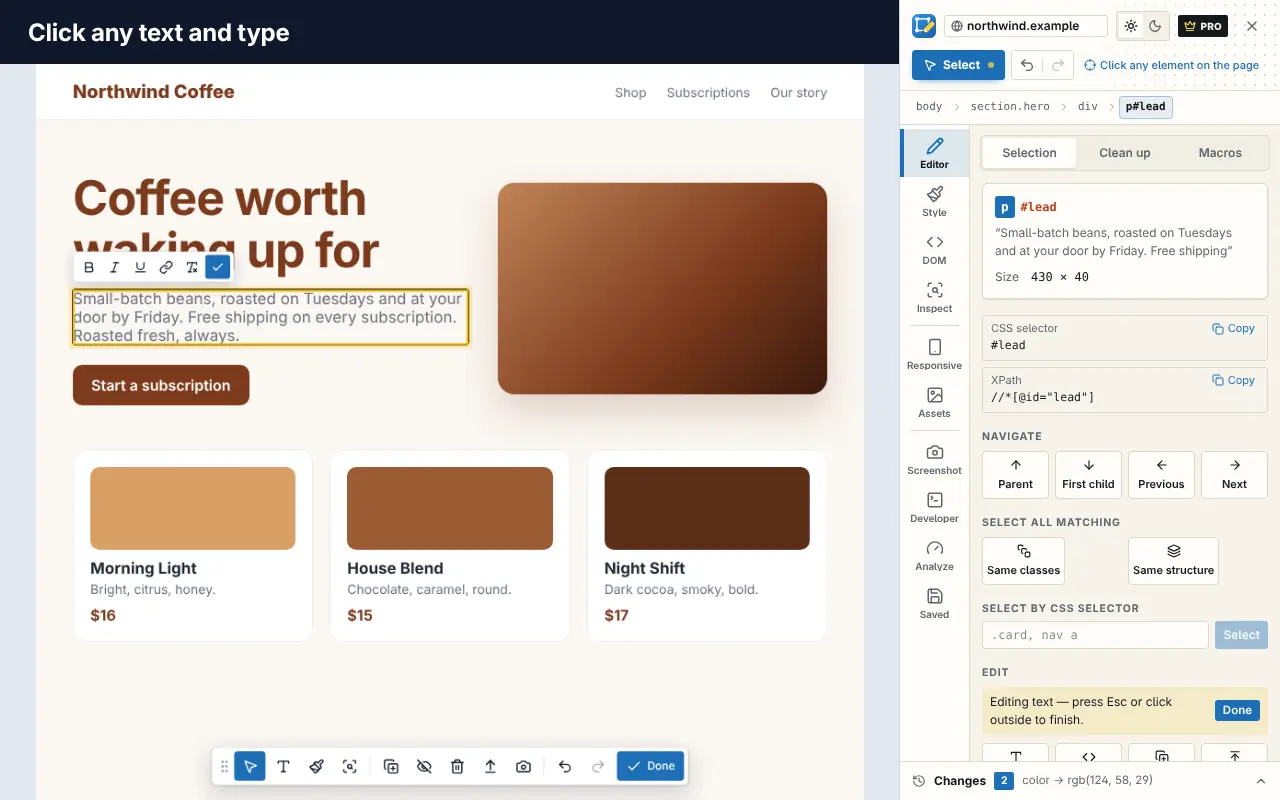
Try each of your title options. Watch where the text gets cut off, and whether the first few words make sense on their own.
Step 3: Replace a thumbnail
Edit Page's Assets list shows the images on the page and lets you replace an image with your own file. Pick the thumbnail of a video in a typical position (say, third in the results) and replace it with your draft. Then look at the page as a whole: does yours catch the eye, and can you read its text?
Step 4: Compare options side by side
Repeat with your other thumbnails and titles. To compare them fairly:
- Take a screenshot of each version of the page. Edit Page can capture the visible area or a region you select; full-page and element screenshots are part of Pro.
- Look at the screenshots small, at roughly the size of a phone screen. That's how many viewers will see them.
- Ask someone else which video they'd click and why, without telling them which one is yours.
Step 5: Check the mobile layout
Many views happen on phones. Edit Page's responsive preview shows the page at phone and tablet sizes, which gives you a rough idea of how your title wraps on a narrow screen. For the real thing, check the YouTube app on your phone after publishing.
A thumbnail and title checklist
- Readable at small sizes: three or four words of text at most, high contrast.
- One clear subject, such as a face, an object or a result, rather than a collage.
- Different colors from the videos around it.
- The title adds information the thumbnail doesn't, and the most important words come first.
- The promise matches the video. A summary of your video should deliver what the title and thumbnail suggest; summarizing your own upload is a quick way to check.
After publishing
YouTube Studio offers a Test & Compare feature for thumbnails on eligible channels, which shows different thumbnails to different viewers and reports which one performs better. Previewing before you publish helps you choose good candidates to test. And once the video is live, consider turning it into an article too; see turning a YouTube video into a blog post.
Frequently asked questions
Does editing the YouTube page change anything on YouTube?
No. Edit Page changes only the copy of the page in your browser. Nobody else sees your edits, and reloading the page brings back the original.
Can I preview a thumbnail before uploading a video?
Yes. Mock it up on a real YouTube page in your browser by replacing an existing thumbnail with your image, then take a screenshot to compare options.
What size should a YouTube thumbnail be?
YouTube recommends 1280 × 720 pixels (16:9). Check it at small sizes too, since it's often shown much smaller.
Is Edit Page free?
Most of the editor is free, including editing text, replacing images and saving changes for a few sites. Pro adds features such as full-page and element screenshots with annotations, unlimited saved sites, sync and code export.