How to Find a Deleted YouTube Video (What You Can Recover)
A video in your playlist now says "Deleted video". How to find its ID, title and description in web archives, look for re-uploads, and save videos that matter.

It happens to everyone with a long playlist: a row that used to be a favourite tutorial now says "Deleted video" or "Private video", with a grey thumbnail and no title. YouTube doesn't tell you what it was. Sometimes you can find out, and occasionally you can still watch it.
This guide explains what's realistically recoverable, then walks through finding a deleted video's title and details with web archives, searching for re-uploads, and making sure the videos you care about don't vanish without a trace next time.
What you can and can't recover
Be realistic before you start:
| What | How likely |
|---|---|
| The video's ID | Very likely, from the playlist link or your history |
| Its title, channel and description | Often, if the page was ever archived |
| Its thumbnail | Sometimes |
| A re-upload by someone else | Sometimes, for popular videos |
| The video itself, playable | Rarely; most web archives save the page, not the video stream |
Even when the video itself is gone, knowing the title and channel is often enough: you can look for the same content elsewhere, or contact the creator.
Step 1: Get the video ID
Every YouTube video has an 11-character ID, the part after v= in a link like youtube.com/watch?v=aBcD3fGh1Jk. It's the key to everything else.
- From a playlist: hover over the "Deleted video" row, or right-click it and copy the link address. The link still contains the ID.
- From your watch history: if you watched it while signed in, the entry may still be there; copy its link the same way.
- From anywhere you shared it: old messages, notes, bookmarks or documents.
Step 2: Search the web archives for the watch page
Web archives such as the Wayback Machine save copies of public web pages, and popular YouTube watch pages are often among them. An archived watch page can show the title, channel name, description, upload date and sometimes view counts and comments.
You can paste youtube.com/watch?v= followed by the ID into the Wayback Machine directly. To check several archives at once, use Web Archive Viewer, a free browser extension from the same maker as SummaryTube:
- Install it for Chrome, Edge or Firefox.
- Open the extension and paste the watch URL into Search archives.
- Click Check Archives to see which archives have captures, and how many.
- Open the oldest and newest captures. The oldest is usually closest to how the page looked when the video was live.
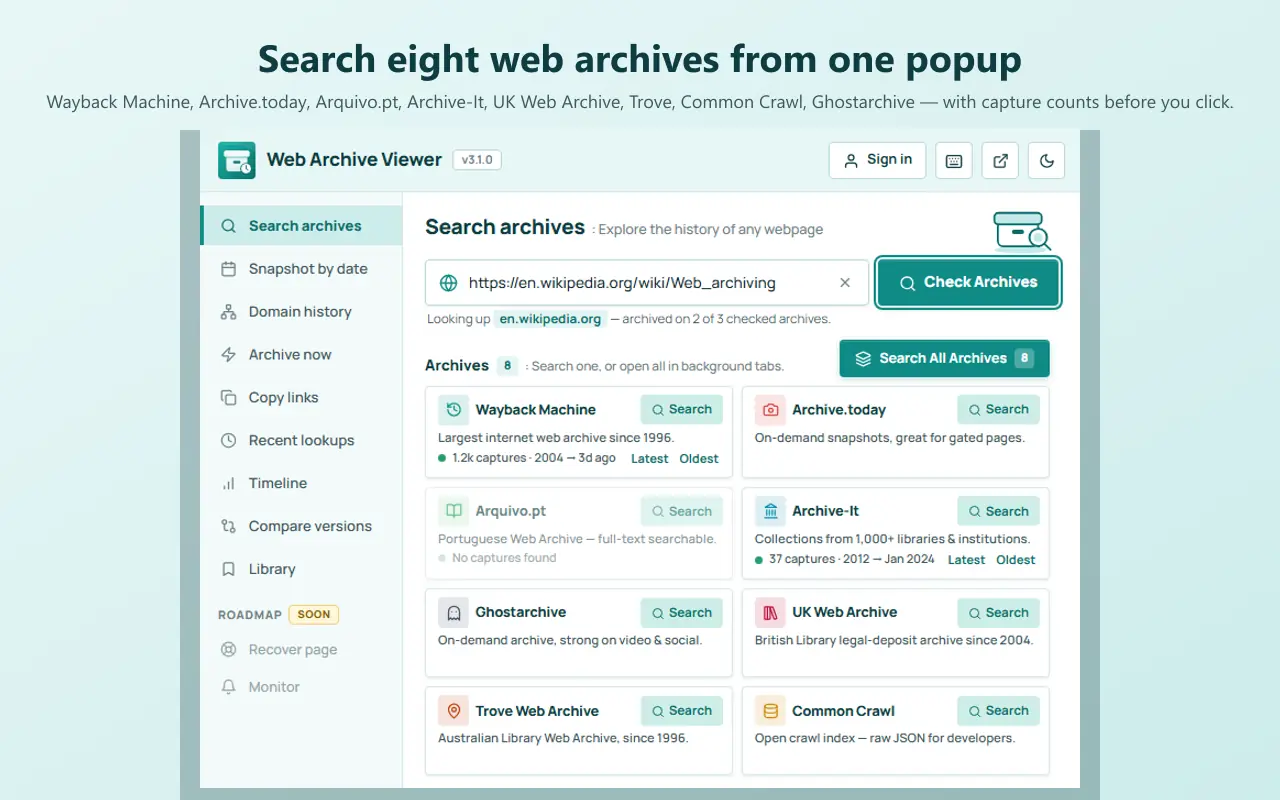
Check Ghostarchive in particular. It's one of the archives that focuses on video and social media pages, so it's worth a look for YouTube links.
Try the short link too. Some people shared youtu.be links, which were archived separately. Search youtu.be/ followed by the ID as well.
Step 3: Search for the title
Once you know the title and channel:
- Search YouTube for the exact title in quotes. Re-uploads often keep the original title.
- Search the web for the title and the video ID. Forum threads, blog posts and social posts that embedded or discussed the video often quote what it said.
- Check the channel. The creator may have re-uploaded an edited version, moved it to a new channel, or made it unlisted rather than deleting it.
Step 4: Ask the creator
If the video was yours to rely on (a course lesson, a tutorial you're citing), a polite message to the creator often works. They may have a newer version, or be able to tell you where the material went. Creators remove videos for many reasons, so respect a "no".
Why videos disappear
Knowing the reason helps you judge whether it might come back:
- The creator deleted it, or made it private while editing or reorganizing.
- A copyright claim took it down.
- It broke YouTube's rules, or the channel was terminated.
- It became members-only or part of a paid course.
"Private video" means it still exists but you can't see it; it may become public again. "Deleted video" usually means it's gone from YouTube for good.
Save the videos that matter, before they go
Prevention is far easier than recovery:
- Write down the essentials for videos you rely on: title, channel, link and a short summary. A SummaryTube summary with key moments, pasted into your notes, keeps the content even if the video goes.
- Keep the transcript of videos you study or cite. Our guide to getting a YouTube transcript shows how.
- Archive the watch page of important videos with the Wayback Machine's Save Page Now, or the Archive now tool in Web Archive Viewer. This saves the page details, not a downloadable copy of the video.
- Only download videos you're allowed to. YouTube Premium offers offline viewing in the app, and some creators provide downloads of their own material.
For more on rescuing pages that have vanished, Web Archive Viewer's blog has a full guide to recovering a deleted web page.
Frequently asked questions
Can I find out what a deleted YouTube video was?
Often, yes. Copy the video's link from your playlist or history to get its ID, then search for the watch page in web archives such as the Wayback Machine. An archived page usually shows the title, channel and description.
Can I watch a deleted YouTube video on the Wayback Machine?
Usually not. Most archives save the watch page, not the video stream, so you'll see the title and description but the player won't play. Some archives capture video for some pages, so it's worth checking several.
What's the difference between "Deleted video" and "Private video"?
A private video still exists, but only the uploader and people they choose can watch it. A deleted video has been removed from YouTube.
Is it legal to re-upload a deleted video I found?
Not unless you have the rights to it. Recovering a video's title and details for your own reference is fine; republishing someone else's video generally isn't.