How to Get the Transcript of a YouTube Video
Show, search and copy the transcript of any YouTube video on desktop or mobile, and avoid the common mistakes in auto-generated captions.

A transcript turns a video into text you can search, skim, quote and translate. Most YouTube videos have one, even when you've never noticed it. Here's how to find it, copy it and make it useful.
Show the transcript on a computer
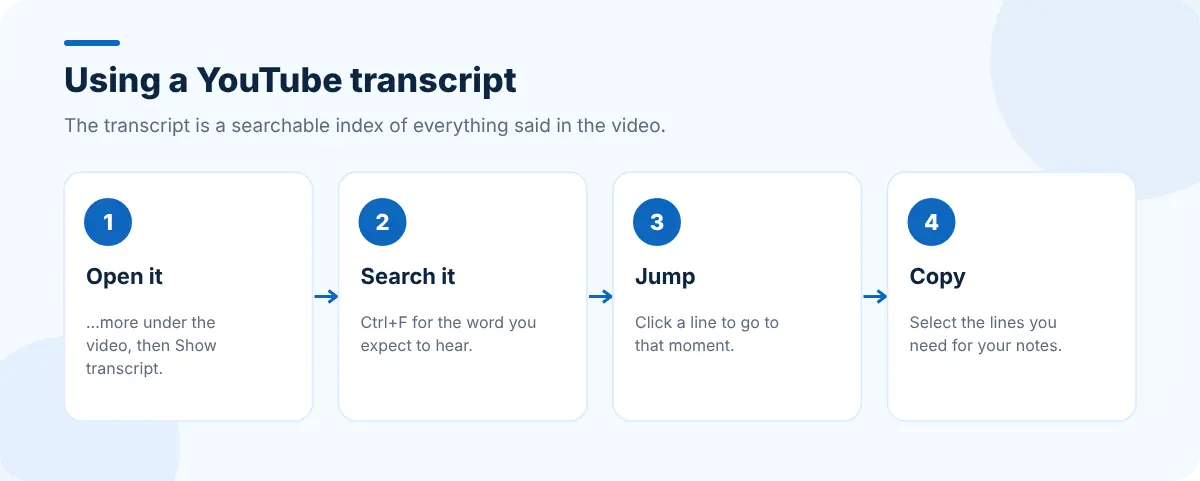
- Open the video on YouTube.
- Below the video, click ...more to expand the description.
- Scroll to the end of the description and click Show transcript.
- The transcript opens next to the video, with a timestamp on every line. Click any line to jump there.
Tip: press Ctrl+F (Cmd+F on a Mac) to search the transcript for a word, then click the line to jump to that moment.
On a phone or tablet
In the YouTube app, tap the video's title or description to expand it, then look for Show transcript near the end. It isn't offered on every video, and the option may move between app versions.
Copy the transcript
To copy text from YouTube's transcript panel, select the lines with your mouse and copy them. Timestamps come along with the text; remove them in a text editor if you don't need them. Many transcript panels also let you toggle timestamps off from the panel's menu.
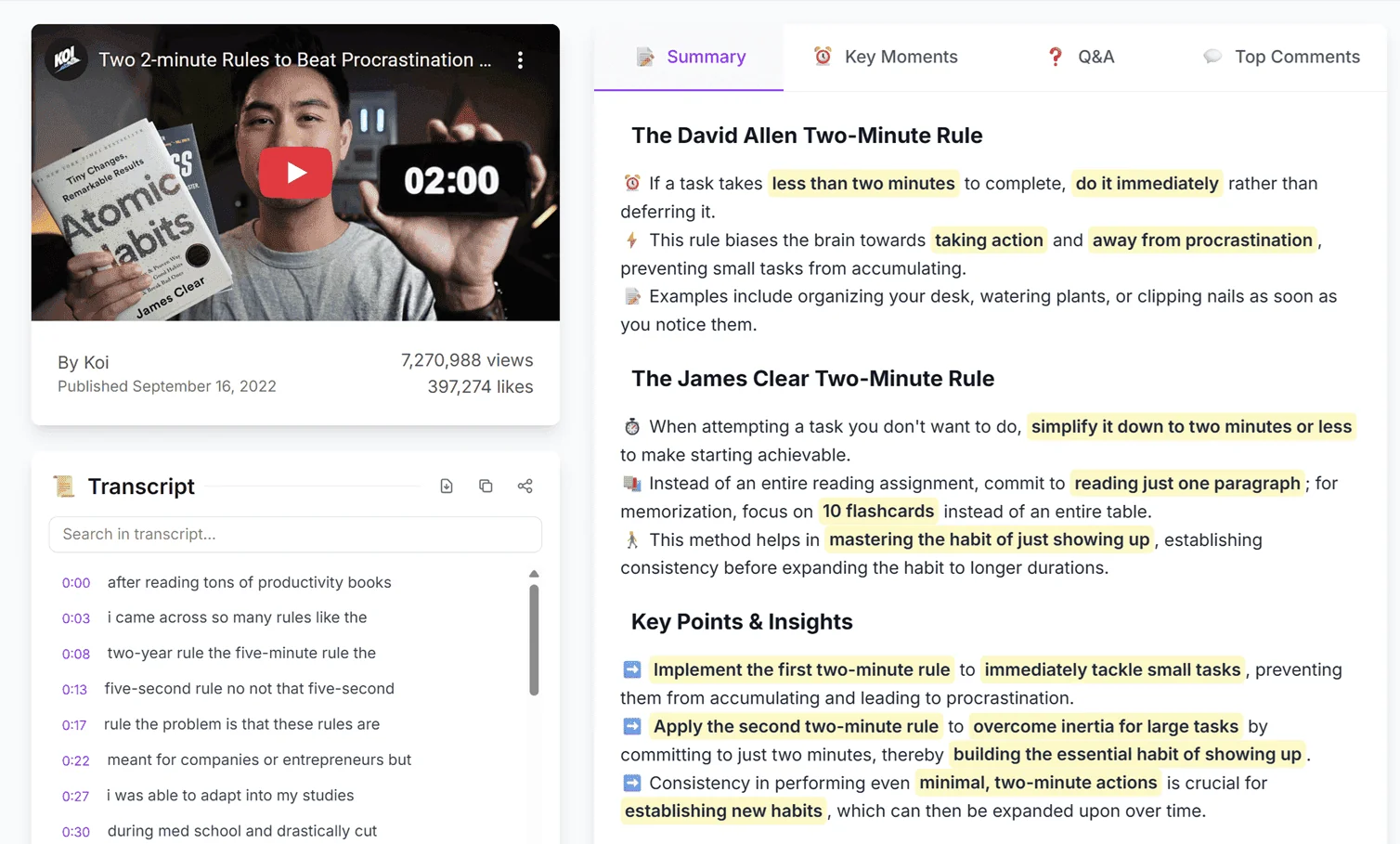
An easier route for long videos: open the video in SummaryTube, which shows the transcript next to the AI summary, key moments and Q&A. You'll need to be signed in to view transcripts.
When there's no transcript
- The creator turned off captions, or the video is too new for auto-captions to be ready.
- The language isn't supported for automatic captions.
- Music-only or silent videos have nothing to transcribe.
In those cases, the description and chapters are your best guide. See how to find key moments in a YouTube video.
Auto-generated vs creator captions
| Auto-generated | Uploaded by the creator | |
|---|---|---|
| How to tell | Labelled "(auto-generated)" in the captions menu | Labelled with the language only |
| Accuracy | Good for clear speech, weaker with names, jargon and accents | Usually much higher |
| Punctuation | Often minimal | Usually complete |
If you quote a transcript, check the wording against the audio, especially names, numbers and technical terms.
What to do with a transcript
- Search it for the step or quote you need instead of scrubbing through the video.
- Summarize it. An AI summary of the transcript gives you the main points in seconds; see how to summarize a YouTube video.
- Take notes from it. Copy the key passages into your notes with timestamps. Our note-taking guide has a template.
- Repurpose your own videos as articles or newsletters; see turning a YouTube video into a blog post.
- Translate it. Captions can be auto-translated in YouTube's settings; see watching YouTube videos in another language.
Tidy transcripts quickly
Pasted transcripts are messy: line breaks every few words, timestamps everywhere. Text tools help. Web Developer Tools includes text utilities such as Remove Empty Lines, Text Case Converter and Word Frequency Analyzer, and CentPage has a Text Formatter widget for quick clean-ups on your new tab.
Frequently asked questions
How do I get the transcript of a YouTube video?
Click ...more under the video to expand the description, scroll down and click Show transcript. The transcript opens beside the video with timestamps.
Can I download a YouTube transcript?
YouTube doesn't offer a download button, but you can select and copy the text from the transcript panel and paste it into any document.
Why can't I see Show transcript?
The video may have no captions, captions may still be processing, or the creator may have turned them off. Some videos simply don't offer a transcript.
Are YouTube transcripts accurate?
Creator-uploaded captions are usually accurate. Auto-generated captions are good for clear speech but can get names, numbers and technical terms wrong, so check important details against the audio.