Web Developer Tools: 555 Free Tools to Inspect Any Website
A guide to the Web Developer Tools extension for Chrome, Edge and Firefox: the tool categories, where to start, real tasks it speeds up, and privacy.

Browser DevTools can do almost anything, but finding the right panel, setting or console snippet for a quick check takes time. Many everyday questions are simpler than that: Which images are missing alt text? What's this page's canonical URL? Why does the layout break at this width? What's in this site's cookies?
Web Developer Tools is a free extension from the same maker as SummaryTube that puts 555 of these checks and utilities into one searchable popup. This guide covers what's in it, where to start and how it helps with real tasks.
What's inside
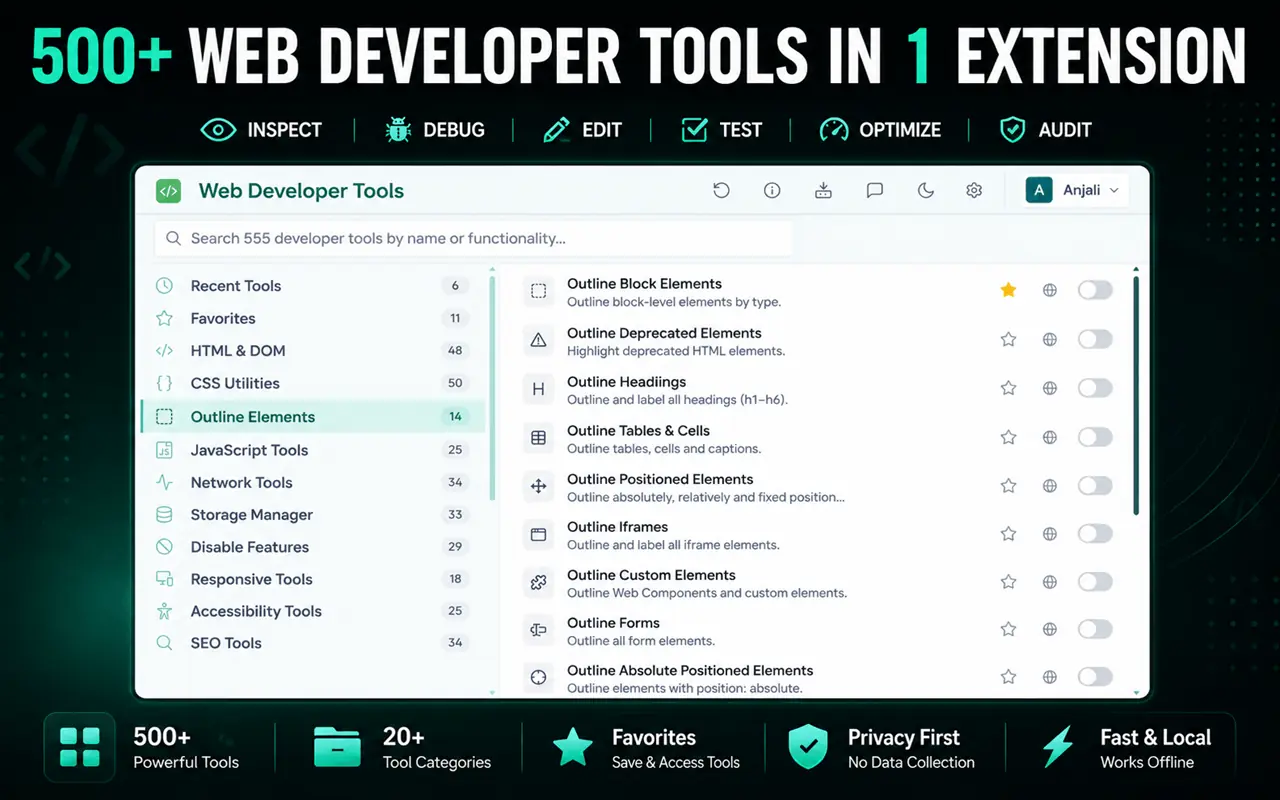
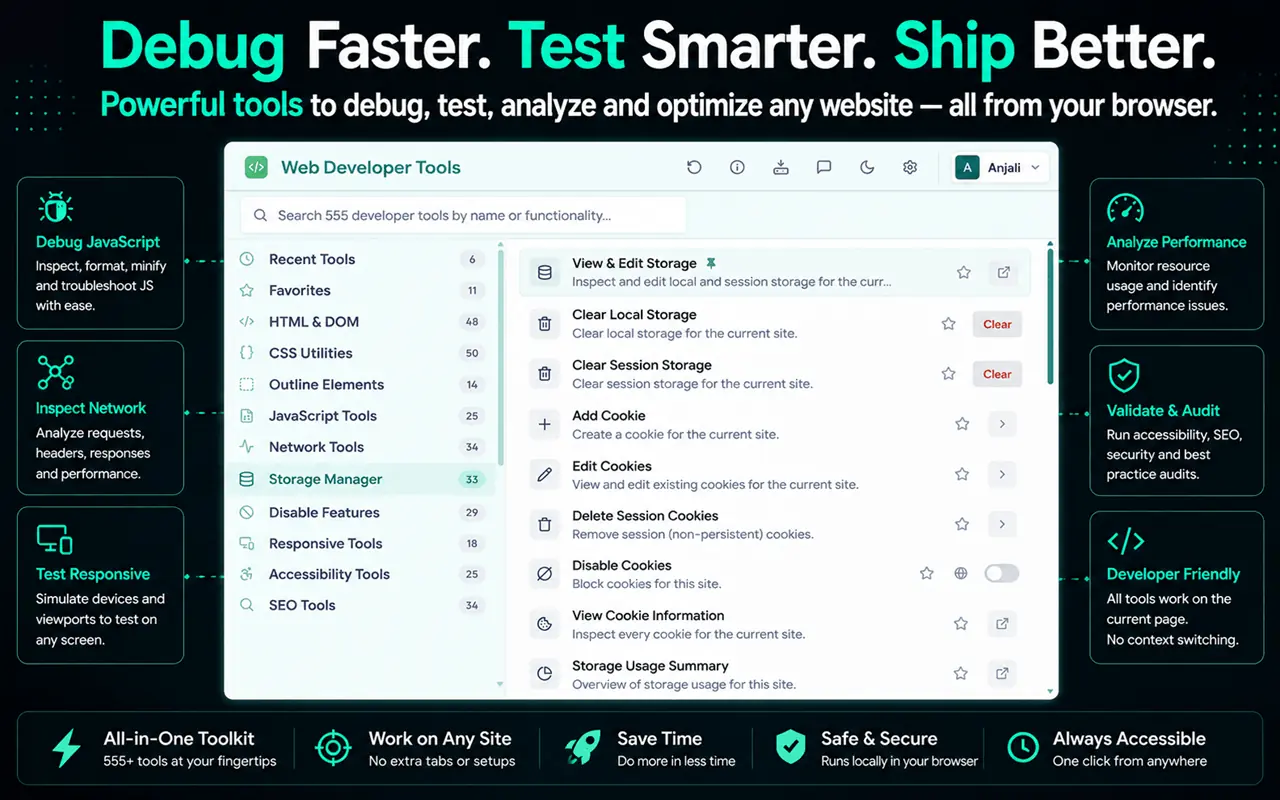
The tools are grouped into categories, and you can search all of them by name or what they do:
| Category | Examples of what you can do |
|---|---|
| HTML & DOM | Inspect elements, view source, find duplicate IDs |
| CSS | View and disable styles, inspect fonts and colors |
| Outline elements | Outline headings, forms, tables and blocks to see the layout |
| JavaScript | Disable JavaScript, see errors and scripts |
| Network | Response headers, redirects, resource sizes |
| Storage | View and clear cookies, local storage and session storage |
| Responsive | Preview the page at common screen sizes |
| Accessibility | Color contrast, missing alt text, heading structure |
| SEO | Meta tags, canonical, Open Graph, structured data, SERP preview |
| Performance | Core Web Vitals, largest images, lazy loading |
| Images | Image sizes, dimensions, alt attributes, formats |
| Data & format | JSON, XML, YAML and CSV formatters and validators |
Install and first steps
- Install it for Chrome, Edge or Firefox, and pin it to the toolbar.
- Open any website and click the extension.
- Search for what you want to do, such as "alt", "headers" or "contrast", instead of browsing categories.
- Star the tools you use often; they appear under Favorites. Recently used tools are listed too.
Ten tools to try first
- Outline headings: see a page's heading structure drawn on the page.
- Highlight Missing ALT: mark images without alt text.
- Meta Tags & Canonical: the title, description, canonical and robots tags in one view.
- Open Graph & Twitter Cards: check the card a page will show when shared.
- Structured Data Viewer: list the JSON-LD on a page.
- Disable JavaScript: see what the page looks like without scripts.
- View cookies and local storage: see what a site stores in your browser, and clear it.
- Responsive preview: check the page at phone and tablet sizes.
- Largest Images: find the heaviest images slowing a page down.
- JSON Formatter: make an API response readable.
Real tasks it speeds up
Following a web development tutorial
When a YouTube tutorial explains CSS layout or accessibility, checking the same thing on a real site is the fastest way to learn it. Outline tools make layout visible, and the accessibility tools show the problems the tutorial describes. Our guide to learning faster from YouTube tutorials explains why practising alongside the video matters.
Checking a page before you publish
Before launching a page, run through meta tags, headings, alt text, broken links, mobile layout and share cards. Web Developer Tools' blog has a full website QA checklist before launch and a technical SEO checklist.
Publishing a video page
If you're turning a video into an article, check its structured data, share card and embed performance. Our guide to checking video SEO on a page with a YouTube embed walks through it with these tools.
Debugging something odd
A redirect loop, a cookie that won't clear, a layout that overflows on mobile: the network, storage and outline tools often show the cause in seconds, before you open DevTools.
Free and Pro
Most tools are free and need no account. Pro is an optional upgrade with additional tools and features; see the Web Developer Tools website for current plans.
Privacy
Web Developer Tools runs its tools on your device. The page data the tools read, such as the DOM, CSS, cookies, headers and storage, is shown to you in your browser and isn't uploaded. The extension doesn't track your browsing. The only things it sends are the optional account lookup if you sign in, and messages you choose to send through its feedback form.
Web Developer Tools and DevTools
It isn't a replacement for your browser's DevTools; it's a faster route to common answers. Use the extension for quick checks and overviews, and DevTools for step-through debugging, performance profiles and network waterfalls. Web Developer Tools' blog has a good set of Chrome DevTools tips for when you do need to go deeper.
Frequently asked questions
Is Web Developer Tools free?
Yes. Most of the 555 tools are free without an account. An optional Pro upgrade adds more.
Which browsers does it support?
Chrome, Edge and Firefox.
Does it slow down websites?
Tools run only when you use them, on the tab you're working on.
Is it only for developers?
No. Designers, QA testers, SEO specialists, content writers and curious users use it for checks like headings, alt text, share cards and cookies, which don't need any coding knowledge.