How to Check Video SEO on a Page With a YouTube Embed
Check the video SEO of a page with an embedded YouTube video: VideoObject structured data, thumbnails, Open Graph tags, headings and embed speed.

Embedding your YouTube video in a blog post or landing page should help both: the article gets richer, and the video gets more views. But whether search engines understand that the page has a video, show it with a thumbnail in results, or show a decent card when someone shares the link depends on details in the page's code.
This guide is a practical checklist for pages with an embedded YouTube video, and shows how to check each item in your browser with free tools.
What search engines need to understand a video page
| Signal | Why it matters |
|---|---|
| The video is the main content of the page | Google mainly shows video results for pages where the video is the focus, not a side element |
| VideoObject structured data | Tells search engines the video's title, description, thumbnail, upload date and duration |
| A crawlable thumbnail | Video results need an image Google can fetch |
| Title, description and headings that match the video | Confirms what the page and the video are about |
| Open Graph and Twitter Card tags | Control the card shown when the page is shared |
| A fast page | A heavy embed can slow the page down |
You don't need all of these for a page to rank. You need them for the page to be understood as a video page and shown as one.
Check 1: Is the video the main content?
Look at the page as a visitor. If the video is the reason the page exists (a tutorial with its write-up, a talk with its notes), place it near the top, give it a heading and a short introduction, and make the text support it. If the video is one of many elements, search engines may treat the page as an article with a video in it, which is fine, but don't expect video results.
Check 2: VideoObject structured data
Structured data is a block of JSON-LD in the page that describes the video. A minimal example for a YouTube embed:
{
  "@context": "https://schema.org",
  "@type": "VideoObject",
  "name": "How to summarize a YouTube video",
  "description": "Four ways to summarize a video, from AI summaries to your own notes.",
  "thumbnailUrl": "https://example.com/images/summarize-video-thumbnail.jpg",
  "uploadDate": "2026-10-21",
  "duration": "PT8M30S",
  "embedUrl": "https://www.youtube.com/embed/VIDEO_ID"
}
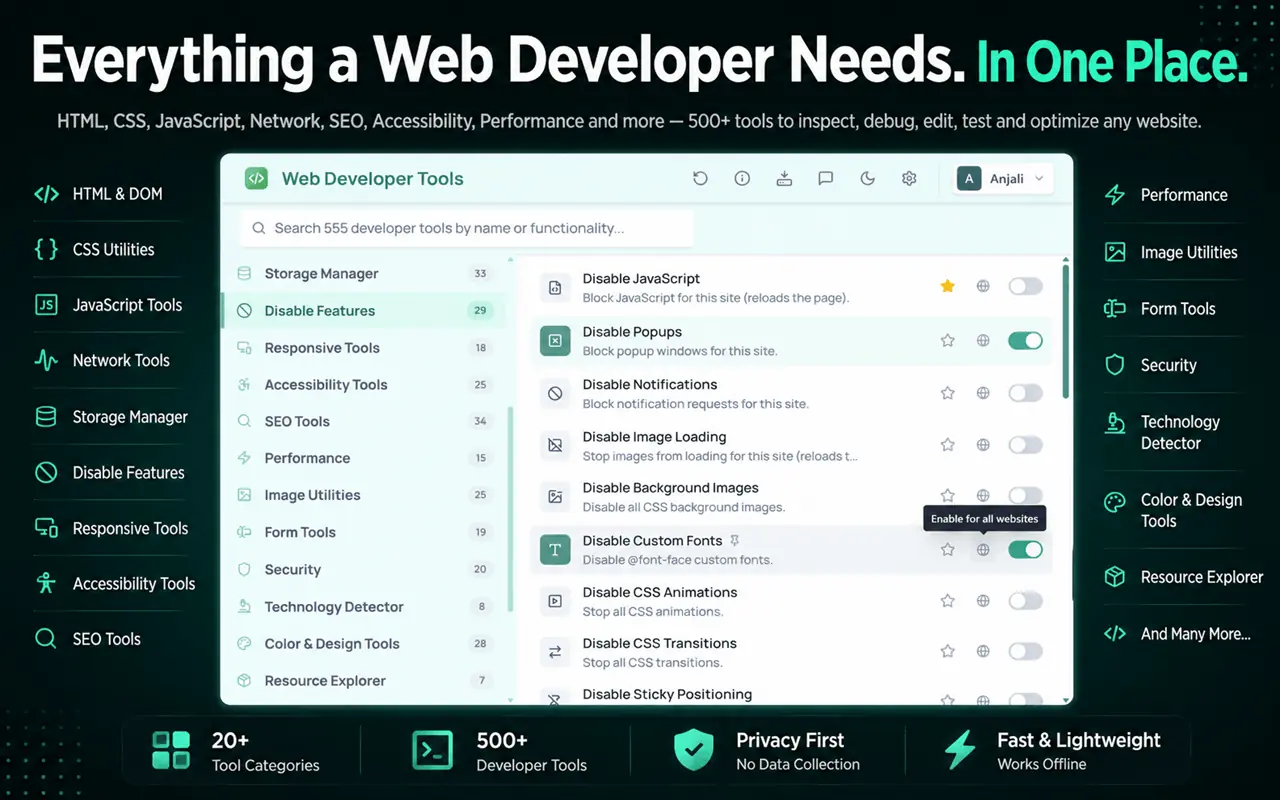
To see what a page actually has, use the Structured Data Viewer in Web Developer Tools, a free extension from the same maker as SummaryTube. It lists every JSON-LD block on the page so you can check that a VideoObject exists and that its fields are filled in. For Google's own verdict, test the URL in Google's Rich Results Test.
Common mistakes: an uploadDate without a date, a thumbnailUrl that returns an error, a description copied from another video, and duration in the wrong format (it uses ISO 8601, like PT8M30S for 8 minutes 30 seconds).
Key moments: if your video has chapters, Google can show them as key moments in results. For YouTube videos, chapters in the YouTube description are the main way to do this. Our guide to finding key moments in a YouTube video explains how creators add chapters.
Check 3: Title, description and headings
The page's title tag, meta description and main heading should describe the same thing the video does, in the words people search for.
In Web Developer Tools:
- Meta Tags & Canonical shows the title, description, canonical URL and robots tags.
- Meta Length Checker flags titles and descriptions that are too long for a results page.
- SERP Snippet Preview shows roughly how the page will look in search results.
- Heading Hierarchy Viewer shows whether there's one clear H1 and a sensible outline.
If the page was built from the video's transcript, make sure the headings read like an article, not like a list of spoken phrases. Our guide to turning a YouTube video into a blog post covers that rewrite.
Check 4: The share card
When someone posts the page on social media or in a chat app, the card comes from the Open Graph and Twitter Card tags: og:title, og:description, og:image and twitter:card. Use Open Graph & Twitter Cards in Web Developer Tools to see the tags and a preview. The og:image should be a large, clear image (1200 × 630 pixels is a common size), ideally your video thumbnail or a custom card.
Web Developer Tools' own blog has a complete guide to checking meta tags and Open Graph.
Check 5: Embed performance
A standard YouTube embed loads the player's scripts as soon as the page opens, even if nobody presses play. On a long article that's usually fine; on a page that should load fast, it can matter.
- Use Show Resource Sizes and Lazy Loaded Resource Detector in Web Developer Tools to see what the embed loads and whether it waits until it's needed.
- Consider a lightweight embed (a thumbnail that loads the real player on click). If you do, keep the VideoObject structured data on the page so search engines still know the video is there.
- Check the thumbnail image you use for the facade isn't oversized; the Largest Images tool lists the heaviest images on the page.
Check 6: Images and accessibility
- Give the thumbnail and screenshots descriptive alt text. Highlight Missing ALT shows images without it.
- Offer captions on the video and a summary or transcript on the page. It helps viewers who can't play sound and gives search engines text to index.
A quick checklist
- The video is near the top with a heading and introduction.
- A VideoObject block exists with name, description, thumbnail, upload date, duration and embed URL.
- The thumbnail URL loads.
- Title, description and H1 match the video's topic.
- Open Graph and Twitter Card tags produce a good share card.
- The embed doesn't slow the page more than necessary.
- Images have alt text, and there's a summary or transcript on the page.
Frequently asked questions
Does embedding a YouTube video help SEO?
It can make a page more useful and engaging, which helps indirectly. To be shown as a video result, the video should be the main content of the page and described with VideoObject structured data.
Do I need VideoObject schema for a YouTube embed?
It's not required, but it's the clearest way to tell search engines about the video's title, thumbnail, date and length, and it's recommended for pages where the video is the main content.
How do I check structured data on a page?
Open the page and use a structured data viewer, such as the Structured Data Viewer in Web Developer Tools, to see the JSON-LD blocks. Google's Rich Results Test shows whether Google can use them.
Should I add a transcript under the video?
Yes, or at least a summary. It helps people who prefer reading, makes the page accessible, and gives search engines text that describes the video.