How to Find the Key Moments in a YouTube Video
Jump straight to the part of a YouTube video you need, using chapters, timestamps, transcript search, AI key moments and keyboard shortcuts.

Most videos have one or two moments that matter to you: the step you're stuck on, the answer to your question, the bit someone told you to watch. Here's how to find those moments without scrubbing back and forth through the progress bar.
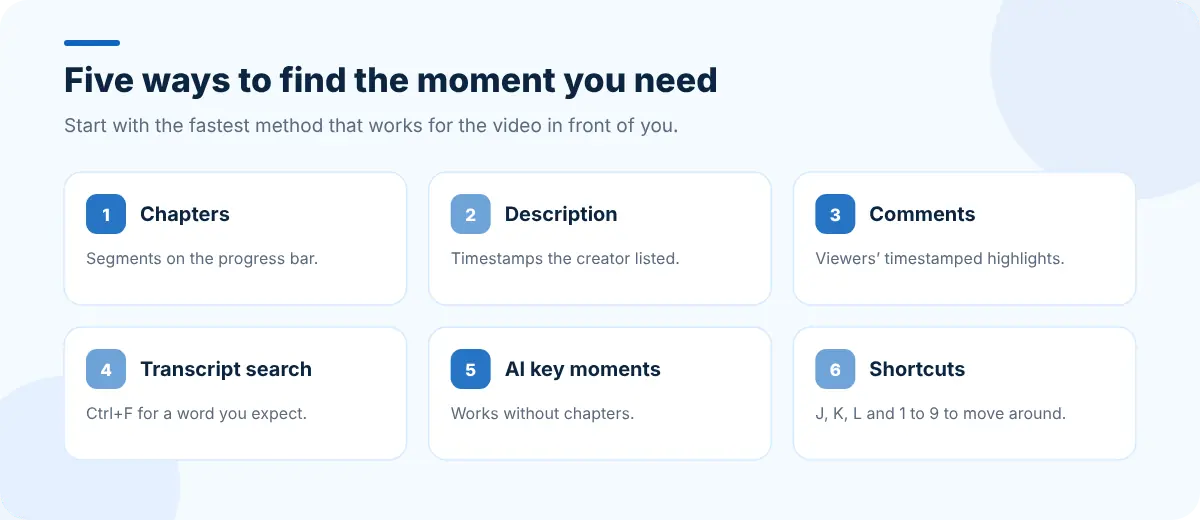
Five ways to find the moment you need
1. Chapters
If the creator added chapters, the progress bar is split into segments. Hover over the bar to see each chapter's title, or open the chapter list from the description. Click a chapter to jump to it.
2. Timestamps in the description
Many creators list timestamps in the description even without chapters. Click any timestamp (like 4:32) to jump there.
3. Timestamps in the comments
Viewers often post timestamped summaries in the comments, especially on long videos. Sort comments by Top and look for a comment full of blue timestamps.
4. Search the transcript
Click ...more under the video, then Show transcript, and search it with Ctrl+F (Cmd+F on a Mac) for a word you expect to hear. Click the line to jump. Our guide to getting a YouTube transcript covers this in detail.
5. AI key moments
When a video has no chapters and no helpful comments, an AI summarizer can find the moments for you. SummaryTube lists key moments with timestamps, each with a short description, alongside the summary and transcript.

Keyboard shortcuts for moving around a video
| Action | Shortcut |
|---|---|
| Play or pause | K or Space |
| Back or forward 10 seconds | J / L |
| Back or forward 5 seconds | ← / → |
| Jump to 10%, 20% … 90% | 1 … 9 |
| Jump to the start / end | 0 or Home / End |
| Previous / next frame (paused) | , / . |
| Show all shortcuts | Shift+/ |
Share a link to the exact moment
To send someone straight to a moment, pause there, click Share and tick Start at. The link includes the time. You can also add &t=90s (or ?t=90 on short links) to a YouTube URL to start 90 seconds in.
Save the moments you'll come back to
- Keep a short list of timestamped links in your notes; see taking notes from YouTube videos.
- For research across many videos, save the set of tabs as a session with Super Session Manager.
- Pin your most-used learning links on your new tab with CentPage.
For long conversations, where moments matter more than ever, see our guide to summarizing long podcasts and interviews.
Frequently asked questions
How do I find a specific part of a YouTube video?
Check the chapters and the description for timestamps first, then search the transcript for a word you expect to hear. If neither helps, an AI summarizer like SummaryTube lists key moments with timestamps.
Why don't some videos have chapters?
Chapters are added by the creator (or generated automatically on some videos). Many videos simply don't have them.
How do I link to a specific time in a YouTube video?
Click Share, tick Start at and copy the link, or add &t= followed by the number of seconds to the video's URL.