How to Save YouTube Research Tabs and Reopen Them Later
Researching with YouTube means dozens of video and article tabs. Save them as a named session, close them, and reopen everything later in one click.

Researching a topic on YouTube rarely stays on YouTube. You open a video, then the article it mentions, then two more videos from the sidebar, a documentation page, a study, a forum thread. An hour later you have thirty tabs, half of them videos you haven't finished, and a browser that's slowing down. Closing them feels like losing your work, so they stay open for days.
There's a better way: save the whole set as a named session, close it, and reopen exactly the same tabs when you're ready to continue. This guide shows how, with your browser's built-in options and with a free session manager.
Why YouTube research piles up tabs
- Videos are long. You open several to watch "properly" later and only finish one.
- Videos point elsewhere. Descriptions link to articles, papers, code and products, each of which opens a new tab.
- Recommendations are endless. The sidebar always has one more relevant-looking video.
- Tabs feel safer than bookmarks. An open tab is visible; a bookmark disappears into a folder.
Each tab costs memory, and a window full of video tabs can use a lot of it. More importantly, a crowded tab bar makes it hard to focus on the one thing you're working on now.
Option 1: Your browser's built-in tools
Chrome, Edge and Firefox all have some way to keep tabs for later, and they're worth knowing:
| Built-in option | How it works | Limitation |
|---|---|---|
| Continue where you left off | Reopens your last windows when the browser starts | Only your last session, and it's easy to lose after a crash or a sign-out |
| Bookmark all tabs | Right-click a tab, bookmark all tabs into a folder | Creates bookmark folders that pile up and are hard to restore as a window |
| Tab groups | Group related tabs with a name and color | Groups still use memory while open, and saved groups vary by browser |
| Reading list | Saves single pages to read later | One page at a time, no grouping by project |
These are fine for a few tabs. For research projects that you return to over days or weeks, a dedicated session manager is simpler and safer.
Option 2: Save the window as a session
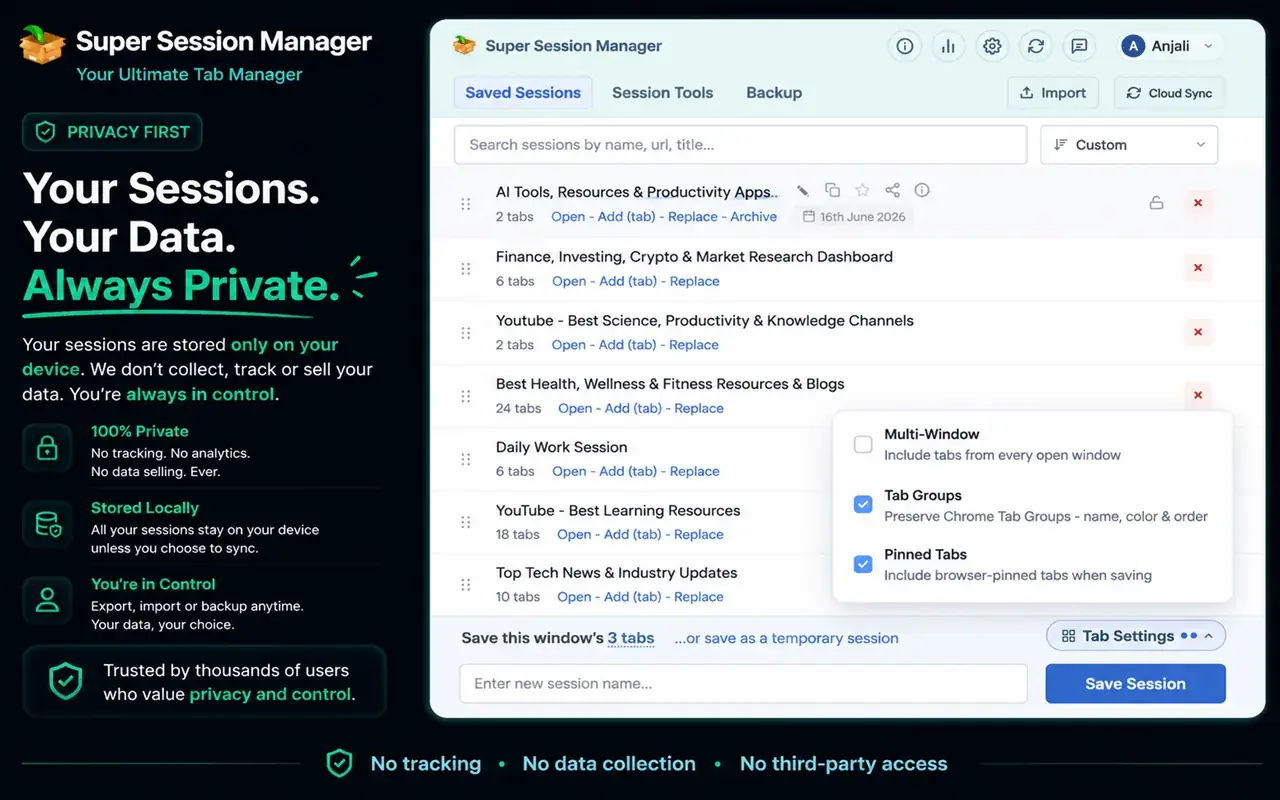
Super Session Manager is a free extension for Chrome, Edge and Firefox from the same maker as SummaryTube. It saves a window of tabs as a named session that you can reopen later in one click.
- Install it for Chrome, Edge or Firefox.
- Put the research tabs in one window. Drag stray tabs in, or open a new window for the project from the start.
- Open Super Session Manager from the toolbar and type a descriptive name, such as "Sleep research: videos and studies".
- Choose what to include. You can keep Chrome tab groups (with their names, colors and order) and pinned tabs, or save tabs from every open window.
- Click Save Session, then close the window.
When you want to continue, open the extension and click Open next to the session. The tabs come back in a new window, in the same order.
Name sessions so you can find them
A list of sessions called "Untitled" is as bad as a bookmark folder called "Misc". Good names make sessions searchable:
- Topic first: "Python data cleaning: tutorials", not "Tuesday tabs".
- Add the stage: "to watch", "to summarize", "sources for essay".
- One project per session. If a window mixes two topics, split it before saving.
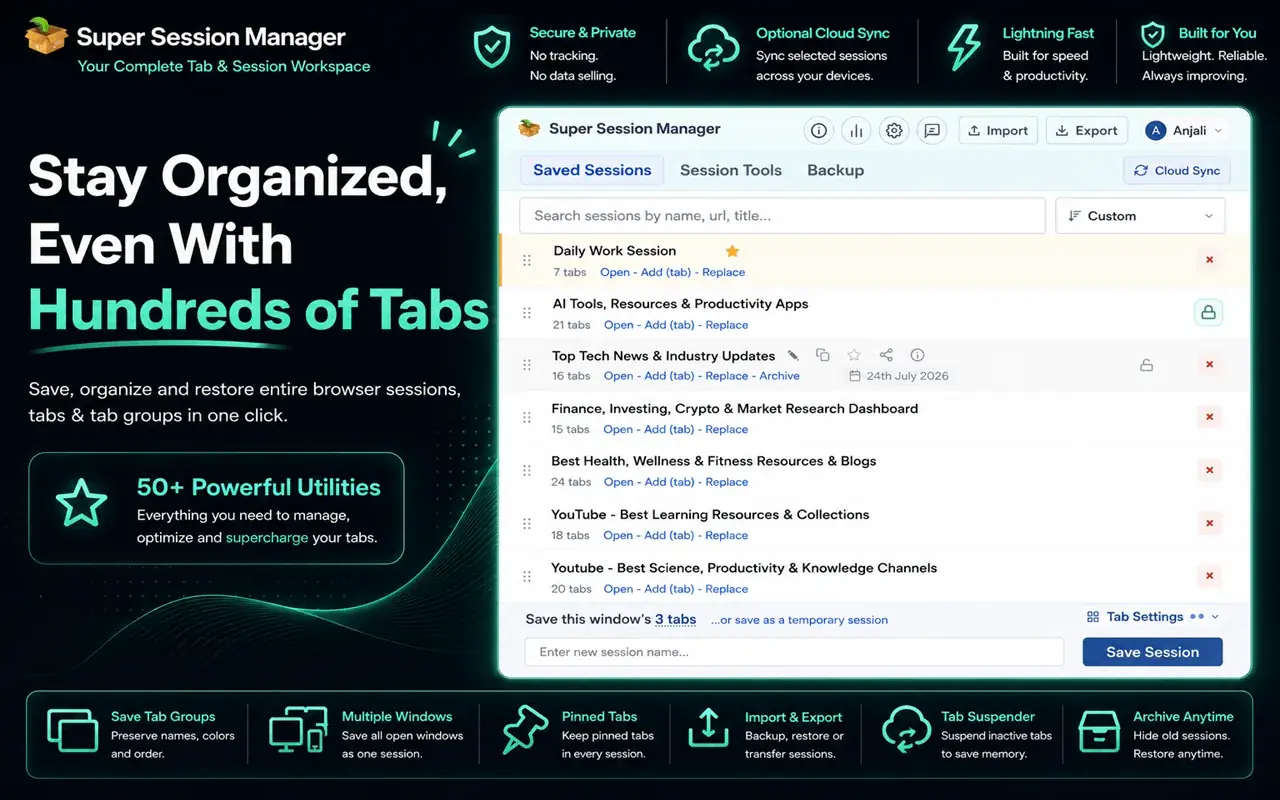
Super Session Manager also lets you search sessions by name, URL or page title, so even a slightly vague name is easy to find later.
A research routine with sessions and summaries
Combining sessions with summaries keeps YouTube research moving:
- Collect. Open the videos and pages that look relevant, without watching them yet.
- Triage with summaries. For each video, read a SummaryTube summary and its key moments. Close any video that doesn't cover what you need.
- Save the keepers as a session named after the project.
- Work in blocks. Reopen the session, watch the key moments of one or two videos, take notes with timestamps, and close the window again. Our guide to taking notes from YouTube videos has a template.
- Update the session when the set of tabs changes, so it always reflects where you are.
This keeps your browser light, your research in one place, and your attention on one video at a time.
Keep research safe from crashes and mistakes
Long research projects are exactly the ones you can't afford to lose. A few habits protect them:
- Save before you restart your computer or browser, not after.
- Lock important sessions so they can't be changed or deleted by accident.
- Archive finished projects instead of deleting them; they're hidden from your main list but can be restored.
- Export a backup as a JSON file now and then.
- Turn on Cloud Sync (Pro) if you research on more than one computer, so your sessions follow you.
Super Session Manager's own guide on how to restore Chrome tabs after a crash covers recovery if something does go wrong.
Share a research set with someone
If you're working with a study group or colleague, Super Session Manager can share a session as a web page with its links, optionally protected by a password. You can also copy all the URLs in a session as plain text, Markdown or CSV and paste them into a document or message.
Frequently asked questions
How do I save all my open YouTube tabs at once?
Move them into one window and save that window as a session with a session manager such as Super Session Manager. You can reopen all of the tabs later in one click. Chrome's "Bookmark all tabs" also works, but restoring from a bookmark folder is clumsier.
Will saving a session keep my place in each video?
A session saves the tab addresses. YouTube usually remembers where you stopped in a video when you're signed in, and a link with a time (from Share, then Start at) opens at that moment.
Is Super Session Manager free?
Yes. Saving, restoring, organizing and exporting sessions is free. Pro adds cloud sync between devices, automatic snapshots and advanced tab tools.
Does it work in Firefox and Edge?
Yes. Super Session Manager is available for Chrome, Edge and Firefox.